
What is the MCP?
MCP (Model Context Protocol) is an open standard that allows an AI like Claude to connect to and interact with external tools. Connected to WordPress, Claude no longer simply explains how to create a page: it creates it itself, as a draft, on your site.
In practical terms, from within a conversation, Claude can read your pages and articles, create new ones, modify content, import images, manage your menus, and fill in your SEO titles and descriptions. All with the permissions you grant him, and none more.
What I did, step by step
1. Install an MCP plugin on WordPress
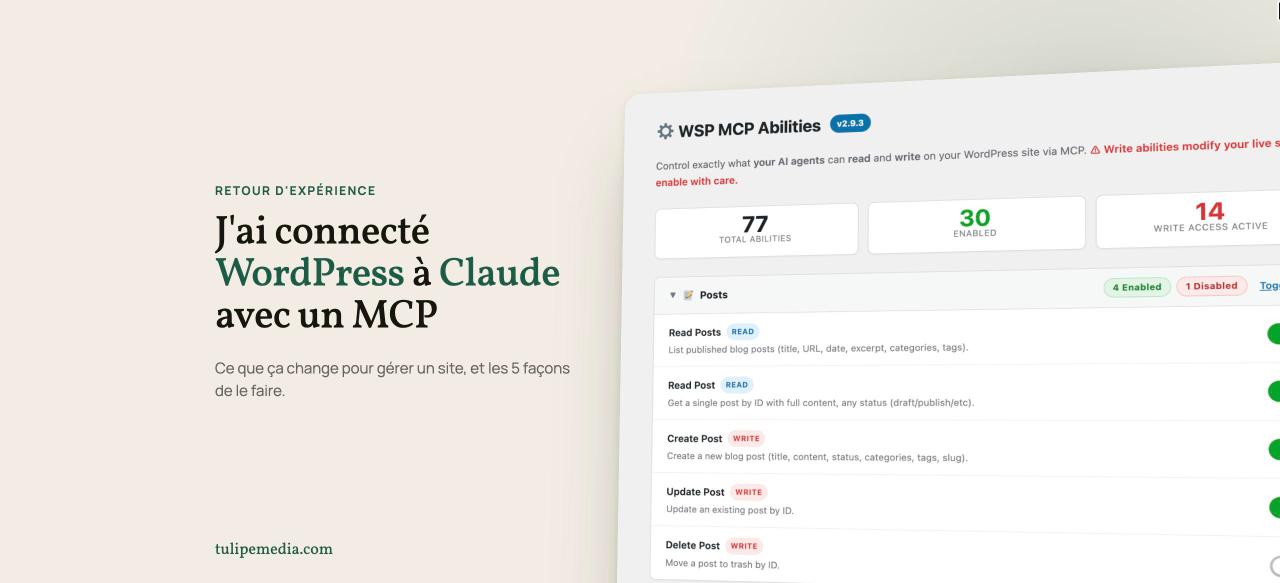
I used the free extension WSP MCP (AI Agents Connector), Available on the official WordPress.org directory and presented on freewordpressmcp.com, it transforms your site into an MCP server: no third-party service between your site and Claude.
2. Only grant the necessary rights
This is the most important setting. By default, the extension only allows reading. I activated, one by one, the actions relevant to my project. : create and edit pages, import media, manage menus, and configure SEO. I've left everything that deletes content disabled, as well as anything related to users, extensions, and commands.
3. Connect Claude to the site
I initially tried to add the site as a connector in Claude (Settings, then Connectors). The connection failed: my hosting provider was blocking a technical address required for authentication. I submitted a support ticket, which was resolved the same day, and everything was back to normal.
In the meantime, I used the Claude desktop application, with a small configuration file provided by the extension. It worked immediately.
Once the block was lifted, I plugged in the official connector, deleted the backup configuration, and regenerated the key. The result: a single, clean access point, usable from the browser, phone, and computer.
Fan of the WordPress ecosystem? Discover the best of my articles on WordPress as well as my WordPress extensions to make your site shine!
4. Let Claude work, and reread
From there, I simply described what I wanted. Claude audited the site, proposed a new site structure, drafted the pages, filled in the SEO details, and then published it once I had reviewed and approved it. For what the extension doesn't cover (the site editor, the header, global styles, certain extension settings), Claude used my browser via the Claude extension for Chrome. It's a backup solution, not very efficient and a bit slow, but it can still be useful for troubleshooting time-consuming tasks.
5 ways to connect WordPress to Claude

1. MCP extension and Claude connector. The method I recommend. No keys to manipulate, permissions are set action by action, and it works everywhere you use Claude. The only prerequisite: that your hosting provider allows authentication (a simple ticket if not).
2. MCP extension and Claude application for computer. A good backup solution or quick start. It requires installing Node.js and manipulating a configuration file, and it only works on the specific computer.
3. The official WordPress MCP adapter. Lighter, supported by the WordPress ecosystem itself, but still young: it needs compatible extensions to be useful. One to watch.
4. An application password and the REST API. WordPress natively supports application passwords. With Claude Code, a developer can control the site directly via the API. Powerful, but reserved for technical profiles, and this password grants full privileges to the user in question.
5. Claude for Chrome. Claude works within your browser, in the administration panel where you're already logged in, much like a wizard. It's slower and less reliable for generating large amounts of content, but it's the only way to achieve what other methods can't. In practice, I combine options 1 and 5.
Why this is a real change
Time-consuming tasks disappear
Creating a page, writing its SEO metadata, preparing a draft article with its featured image, redesigning a menu, proofreading ten pages of text: these are all tasks that take hours in administration and only a few minutes in conversation. You describe the expected result, you proofread, you publish.
Advice and execution in the same place
That's what surprised me the most. In the same conversation, I was able to discuss my positioning, my pricing, and the structure of my offers, and then see those decisions implemented directly on the website. No specifications to send, no back-and-forth: Claude keeps track of what we decided together and executes it.
Problems found along the way
During the site audit, Claude spotted an old Google Analytics code snippet that had been forgotten for years in a plugin setting. He also pointed out a broken link to a client site and several inconsistencies between my pages. The kind of things you don't notice anymore when you've been working on your site for ten years or when you don't have the time to manage it.
Precautions to take
- Start with reading alone, then open the rights gradually.
- Keep deletion disabled. Claude can create and modify; deleting remains your decision.
- Have Claude work on a draft. And proofread before publishing: it's your name that will sign.
- Test on a pre-production if your hosting provider offers one.
- Never share an access key in a conversation.
And if you want to implement it?
The setup takes a few hours if everything goes smoothly, a little longer if your hosting provider blocks something. If you want to save time, or if you'd like me to show you how I use this combination daily to manage a website, I'm happy to talk about it.


Leave a Reply